
Your folders, apps and websites in one window
WorkTool is a Windows workspace that brings File Explorer folders, desktop apps and web apps together in tabs and split views, with floating notes and a command palette for everything.
WorkTool is being developed and tested. Public downloads will open when the first release is ready. For Windows 10 and 11.
A recreation of WorkTool’s interface with sample data. Real screenshots are further down this page.
A workday spread over a dozen windows, gathered into one
File Explorer, a browser full of tabs, a mail client, a PDF reader, a chat app. WorkTool keeps the folders, websites and apps you use in one library, shows each in the place it belongs, and opens them side by side in tabs. Nothing on your PC moves: WorkTool keeps references.
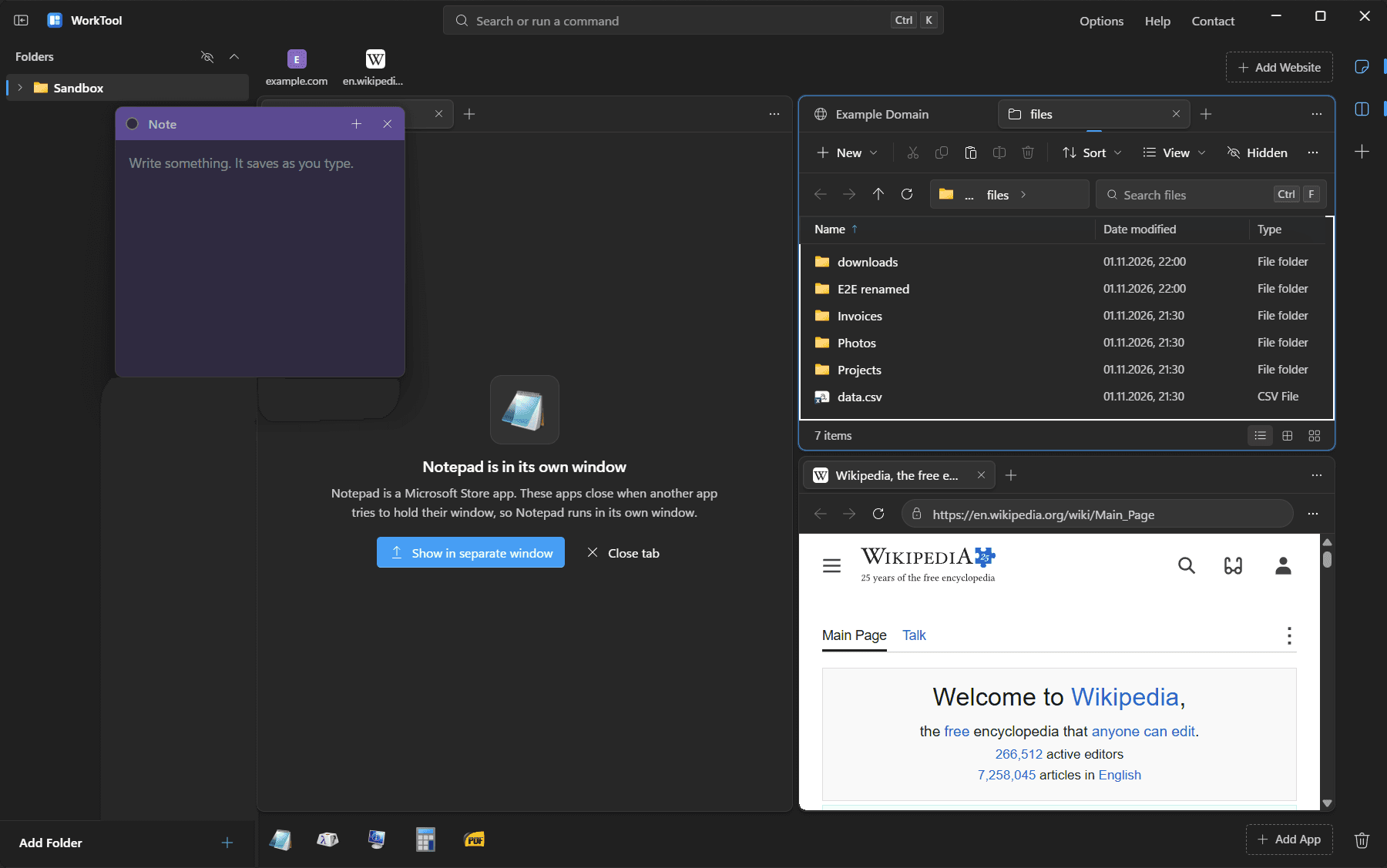
- 1FoldersThe folders you add, as a tree. They stay where they are on your PC.
- 2Website stripYour websites, each with its own sign-in.
- 3Tabs and panesFolders, websites and apps open as tabs, in up to four panes.
- 4Folder tabExplorer-style views, clipboard and Recycle Bin.
- 5App dockDesktop apps, with a marker for the ones running.
- 6Quick actionsNotes and multi-view layouts.
Five things worth seeing first
Desktop apps run in your tabs
Click an app in the dock and WorkTool shows it inside its own window, without the app's title bar, sized to the pane. Menu bars, toolbars and keyboard input keep working.
- Closing the tab closes the app, including apps that would hide in the tray
- Apps started outside WorkTool show as running and can be brought in
- Microsoft Store apps run in their own window, and WorkTool tells you why
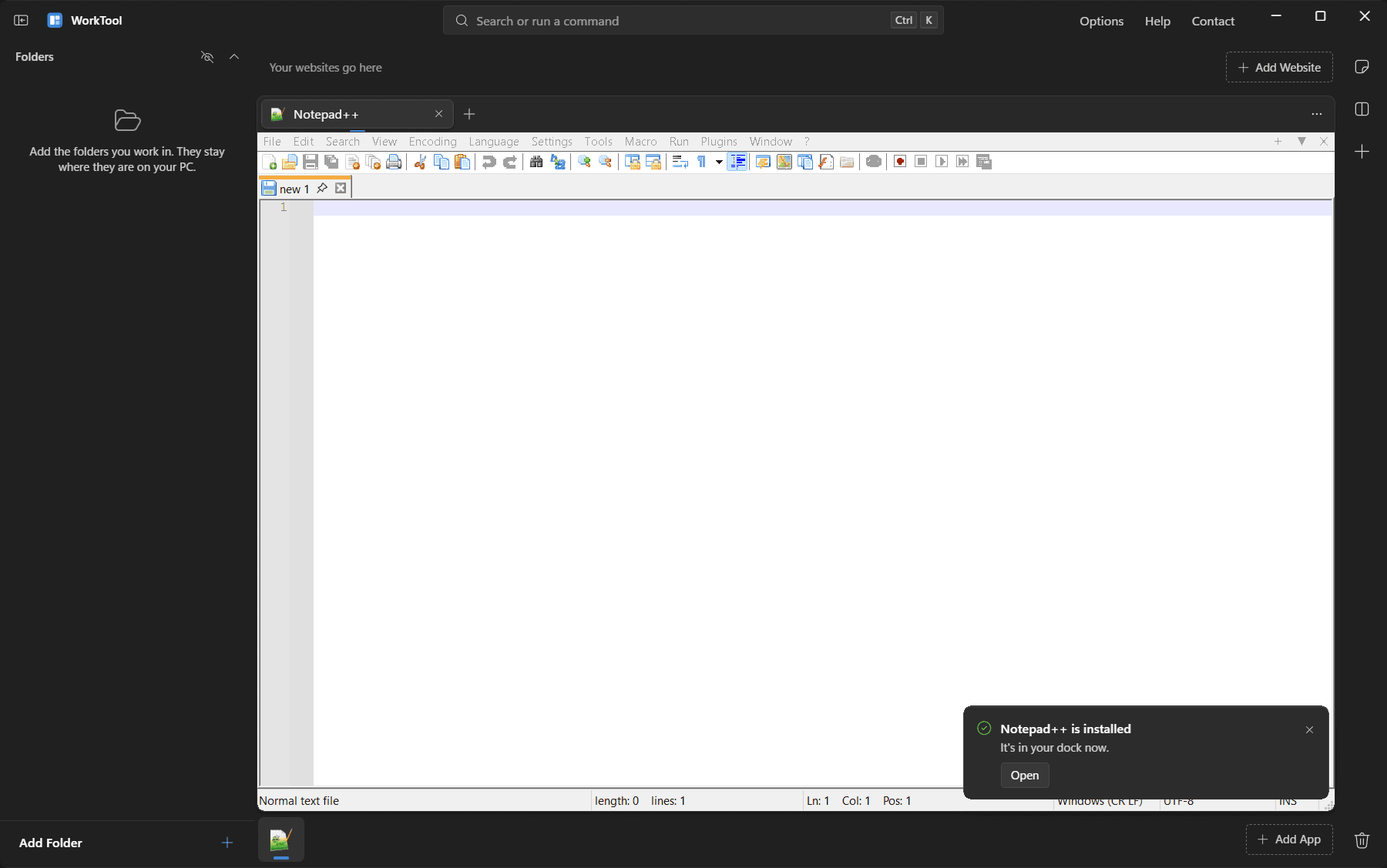
Try it in your browser
A working recreation of WorkTool on a made-up PC, with sample folders, websites and apps. Open files, split the view, write a note, install an app. Nothing is saved, and it loads only when you start it.
Your files stay put and your setup stays yours
WorkTool works with what’s already on your PC instead of copying it somewhere else, and it keeps your workspace in files you own.
- References, not copies
- Adding a folder never moves or copies a file. Removing it from WorkTool never deletes anything.
- A WorkTool trash with Undo
- Removed folders, websites, apps and notes go to WorkTool's own trash, ready to restore.
- Real deletes ask first
- Files go to the Windows Recycle Bin. Permanent deletion shows the full path of every item before it runs.
- A profile per website
- Each website keeps its own cookies and sign-in, separate from every other site.
- Local, no account
- Your library and settings are files in your Windows user folder. There is nothing to sign up for.
- Honest about limits
- When Windows won't let an app be held inside WorkTool, WorkTool says why and opens it in its own window.
In alpha, and honest about it
WorkTool works and is tested on Windows 11, but it isn’t finished. Public downloads open with the first release. Until then, the changelog shows every internal build and the roadmap shows what’s next.
Stage
Alpha, in development and testing
Latest internal build
0.2.0, 2 November 2026
Platform
Windows 11 tested, Windows 10 not yet tested
Public downloads
Not yet available
Source code
To be published; not public yet
Release date
Not announced
See how WorkTool works, then follow it to release
Try the interactive preview, read how each part works, or follow the development journal.